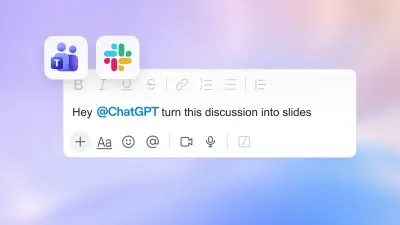


If you've ever stared at a blank PowerPoint slide, wondering how to turn a jumble of ideas into a polished presentation, there's now an AI-powered shortcut that might change everything. Microsoft has officially brought ChatGPT directly into PowerPoint, and most users can start generating slides with AI starting today.
This isn't just another add-on. It's a fundamental shift in how presentations are created — from scratch. Instead of spending hours formatting, structuring, and writing slide content, you can now describe what you need in plain English, and ChatGPT will build the entire deck for you.
How the ChatGPT PowerPoint Integration Actually Works
The integration is available through Microsoft's AppSource marketplace. Users can install the ChatGPT for PowerPoint plugin directly into their PowerPoint application — both the desktop version and the web-based version.
Once installed, the plugin appears as a new tab or sidebar within PowerPoint. You type a prompt — something as simple as "Create a 10-slide presentation on the future of renewable energy" — and ChatGPT generates a complete slide deck with titles, bullet points, and even suggested visuals.
The tool offers two tiers:
- Starter: A free tier that unlocks extra AI capabilities for smoother, faster presentation creation, though with some usage limits.
- Pro: A paid subscription that provides unlimited access, advanced customization, and priority support.
The plugin is designed to work alongside existing PowerPoint features, meaning you can still manually edit slides, add your own images, and tweak layouts after the AI generates the initial draft.
Why This Matters Right Now
For millions of professionals, students, and educators, creating presentations is a daily — and often painful — task. The average office worker spends roughly 4 to 6 hours per week building slides. That's hundreds of hours a year spent on formatting, aligning text boxes, and choosing fonts.
This integration directly addresses that pain point. By offloading the heavy lifting of slide creation to AI, users can focus on refining the message, adding personal insights, and delivering a more impactful presentation — rather than wrestling with software.
For businesses, the implications are even bigger. Faster presentation creation means faster decision-making, quicker client pitches, and more time for strategic thinking. For educators, it means less time building lecture slides and more time engaging with students.
Who Is Affected and What Microsoft Is Saying
The integration is primarily aimed at:
- Business professionals who create pitch decks, quarterly reports, and internal updates
- Students and academics who need to build presentations for classes or conferences
- Marketers and sales teams who produce client-facing materials regularly
- Trainers and educators who develop course content and training modules
Microsoft has positioned this as part of a broader push to integrate AI into its Office suite. The company has been rolling out Copilot features across Word, Excel, and Teams, and the ChatGPT plugin for PowerPoint is the latest step in that direction.
According to the listing on Microsoft AppSource, the plugin is designed to "turn ideas into beautiful slides" and is available for immediate download. The company has emphasized that the tool is meant to augment — not replace — human creativity, giving users a starting point that they can then personalize.
What We Know So Far — and What Remains Unclear
What we know:
- The plugin is officially listed on Microsoft AppSource and available for download
- It works with both PowerPoint desktop and web versions
- There are two pricing tiers: Starter (free) and Pro (paid)
- The AI can generate full slide decks from text prompts
- Users can edit and customize the generated slides manually
What remains unclear:
- Exact pricing for the Pro tier and whether it's a one-time fee or subscription
- How the tool handles complex data visualizations, charts, and graphs
- Whether the integration is available globally or limited to certain regions
- How Microsoft ensures data privacy and security when using the AI plugin
- Whether the tool supports multiple languages and regional formatting standards
Risks, Concerns, and the Balanced View
While the ChatGPT PowerPoint integration is undoubtedly powerful, it's not without potential downsides.
Risk of generic presentations: If everyone uses the same AI tool with similar prompts, there's a real risk that presentations start looking and sounding alike. The AI generates content based on patterns in its training data, which means it may produce slides that feel generic or lack the unique voice of the presenter.
Over-reliance on AI: There's a concern that users might become too dependent on the AI, skipping the critical thinking and research that goes into building a compelling argument. A presentation is more than just bullet points — it's a narrative, and AI may not always capture the nuance.
Data privacy: When you feed sensitive business data or proprietary information into an AI plugin, questions arise about where that data is stored, who has access to it, and how it's used. Organizations with strict data compliance requirements may need to evaluate this carefully.
Accuracy and hallucinations: Like all large language models, ChatGPT can occasionally generate incorrect or misleading information. Users will need to fact-check the content of AI-generated slides, especially for presentations that involve data, statistics, or technical details.
Cost: While the Starter tier is free, the Pro tier may add an ongoing cost for users who need unlimited access. For businesses with many employees, this could add up.
Why Similar AI Presentation Tools Are Gaining Momentum
The ChatGPT PowerPoint integration is part of a larger trend. Over the past year, several AI-powered presentation tools have emerged, including:
- Gamma: An AI-first presentation tool that generates slides, documents, and web pages
- Tome: An AI storytelling tool that creates narrative-driven presentations
- Beautiful.ai: A design-focused tool that uses AI to automate slide layouts
- SlidesAI: A Google Slides add-on that generates presentations from text
What sets the ChatGPT PowerPoint integration apart is its direct embedding into the most widely used presentation software in the world. PowerPoint has over 1.2 billion users globally, and bringing AI directly into that ecosystem could accelerate adoption faster than any standalone tool.
The trend reflects a broader shift in how knowledge workers approach content creation. Instead of starting from a blank page, they're increasingly using AI to generate a first draft — and then refining it. This "AI-first, human-refined" workflow is becoming the new normal across writing, design, and now presentations.
"Turn ideas into beautiful slides." — Microsoft AppSource listing for ChatGPT for PowerPoint
What Users Should Know Before Installing the Plugin
If you're considering trying the ChatGPT PowerPoint integration, here are a few practical tips:
- Start with a clear prompt: The quality of the output depends heavily on the input. Be specific about the number of slides, the audience, and the key message you want to convey.
- Review and edit everything: Treat the AI-generated slides as a first draft. Add your own insights, data, and personality to make the presentation truly yours.
- Check for accuracy: Verify any facts, statistics, or claims the AI includes. Don't assume everything is correct.
- Consider your audience: A presentation for a board of directors will need a different tone and depth than one for a classroom. Tailor your prompt accordingly.
- Start with the free tier: Before committing to a paid plan, test the Starter tier to see if the tool meets your needs.
What Could Happen Next
The ChatGPT PowerPoint integration is likely just the beginning. As AI models become more sophisticated, we can expect:
- Deeper customization: Future versions may allow users to upload brand guidelines, color palettes, and fonts, so the AI generates slides that match corporate identity.
- Voice and video integration: AI could eventually generate speaker notes, suggest delivery tips, or even create video narration for slides.
- Real-time collaboration: Teams could use AI to collaboratively build presentations, with the AI suggesting improvements as they work.
- Integration with other data sources: The AI could pull live data from Excel, databases, or APIs to create dynamic, data-driven slides.
Microsoft is also likely to expand its Copilot features across the entire Office suite, making AI an integral part of how people create documents, spreadsheets, and presentations.
Our Take: Why This Integration Matters Beyond Just Slides
The ChatGPT PowerPoint integration is more than a convenience — it's a signal of where productivity software is heading. The era of manually formatting every slide, aligning every text box, and choosing every font is giving way to a new paradigm where AI handles the mechanics, and humans focus on the message.
For the average user, this means less time fighting with software and more time thinking about what they actually want to say. For businesses, it means faster turnaround on presentations, more consistent quality, and potentially lower costs.
But the real value lies in what this frees up: human creativity. When you're not bogged down by the tedious mechanics of slide creation, you can spend that energy on crafting a compelling narrative, finding the right data, and connecting with your audience.
That's a shift worth paying attention to — whether you're a CEO preparing a keynote, a teacher building a lesson plan, or a student working on a final project.
FAQs
How do I add ChatGPT to PowerPoint?
Go to Microsoft AppSource, search for "ChatGPT for PowerPoint," and install the plugin. Once installed, it will appear as a new tab or sidebar within your PowerPoint application. You can then type a prompt to generate slides.
Is the ChatGPT PowerPoint integration free?
There is a free Starter tier that provides basic AI capabilities with some usage limits. For unlimited access and advanced features, there is a paid Pro tier. Exact pricing for the Pro tier is available on the Microsoft AppSource listing.
Can ChatGPT generate PowerPoint presentations with images and charts?
Yes, the AI can generate slides with suggested visuals, bullet points, and structured content. However, you may need to add your own specific images, graphics, and data visualizations manually for best results. The AI provides a strong starting point that you can customize.
Is it safe to use ChatGPT for business presentations with sensitive data?
You should exercise caution when feeding confidential or proprietary information into any AI tool. Review Microsoft's privacy policy and data handling practices for the plugin. For highly sensitive presentations, it may be safer to use the AI for structure and design ideas while adding sensitive content manually.