
Most MacBook owners use maybe a fraction of what their machine can actually do. The Shortcuts app — sitting quietly in your Applications folder — is one of the most underused tools Apple has shipped in years. And with recent updates, it's become dramatically easier to use.
You no longer need to think like a programmer. You can describe what you want in plain language, and Shortcuts helps build the automation for you.
What Exactly Is Shortcuts — and Why Should You Care?
Shortcuts is Apple's built-in automation app. It lets you chain together actions — like resizing an image, renaming files, sending a message, or opening a specific set of apps — into a single tap or click.
Think of it as a recipe. Each step is an ingredient. Once the recipe exists, you never have to cook it manually again.
On Mac, Shortcuts integrates deeply with Finder, Safari, Mail, Notes, and most third-party apps that support Apple's system frameworks. That means the automations you build can reach across your entire workflow, not just one app.
How Natural Language Changes the Game for Beginners
The biggest barrier to automation has always been the learning curve. Traditional scripting required understanding variables, loops, and conditional logic.
Natural language support lowers that wall. Instead of dragging and configuring individual action blocks, you can describe the outcome you want — and Shortcuts suggests the building blocks to get there.
It's not perfect. Complex workflows still benefit from manual editing. But for everyday tasks, it's a genuine shift in accessibility.
Your First Shortcut: A Simple Walkthrough
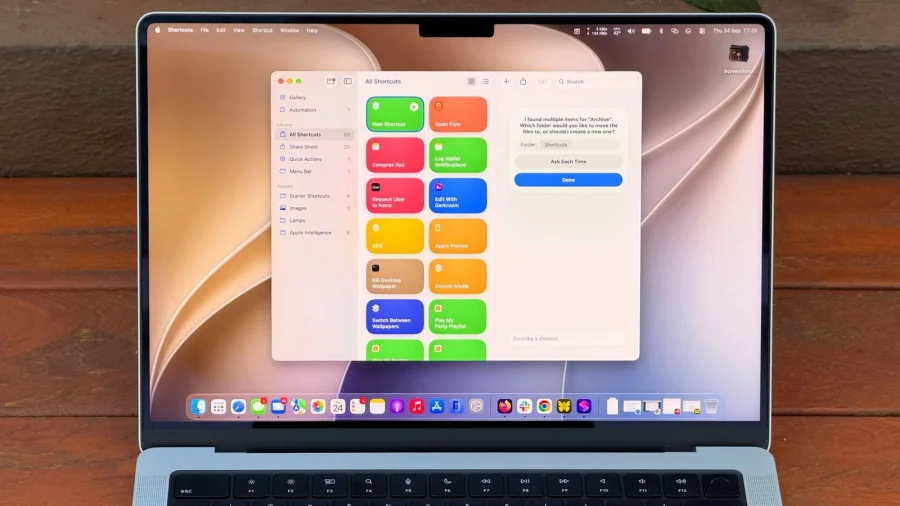
Open Shortcuts from Launchpad or Spotlight. You'll see two main areas: the Gallery, which offers pre-built shortcuts from Apple and the community, and My Shortcuts, where your own creations live.
Start with the Gallery. Browse categories like Productivity, Files, and Quick Actions. Pick one that sounds useful — for example, a shortcut that compresses images or one that creates a new note with today's date.
Click Add, and it appears in your library. Run it once to see how it behaves. This is the fastest way to understand what Shortcuts can do before building your own.
Building From Scratch Without Overwhelming Yourself
When you're ready to create your own, click the plus icon. You'll get a blank canvas with a search bar for actions.
Start with something small. A good first project: a shortcut that takes selected files in Finder and moves them to a specific folder. Search for "Move File," add the action, and configure the destination.
Save it, then right-click any file in Finder and look for Quick Actions or Services. Your shortcut should appear there. That's the moment automation clicks for most people.
Where Shortcuts Actually Saves You Time
The real value shows up in repetition. If you do something more than twice a week, it's probably worth automating.
Common wins include batch-renaming files, converting image formats, extracting text from PDFs, scheduling messages, and creating templated documents. Each shortcut you build removes a small friction point from your day.
Over a month, those small savings add up. The goal isn't to automate everything — it's to stop doing the same clicks over and over.
Connecting Shortcuts Across Your Apple Devices
Shortcuts sync through iCloud, so a shortcut you build on your Mac is available on your iPhone and iPad. This matters more than it sounds.
You can start a workflow on your phone — say, capturing a voice memo — and have it feed into a Mac-based shortcut that transcribes and files it. The ecosystem is the advantage here, and it's one Android and Windows users don't get in the same way.
What's Genuinely Useful vs What's Just Novelty
Not every shortcut is worth keeping. Some are fun once and forgotten. The ones that stick tend to solve a specific, recurring annoyance.
Be honest about your habits. If you rarely touch certain apps, don't build shortcuts around them. Focus on the tasks you actually repeat — email triage, file organization, screenshot handling, or note-taking.
Delete shortcuts that don't earn their place. A cluttered library is its own kind of friction.
Common Mistakes New Users Make
The most frequent error is trying to build something too ambitious on day one. A ten-step automation that breaks halfway is discouraging.
Another is ignoring the Gallery entirely. Apple and other users have already solved many common problems. Borrowing a working shortcut and modifying it is faster than starting from zero.
Finally, don't skip testing. Run your shortcut on a few sample files before trusting it with anything important.
Confirmed Facts vs What Remains Unclear
Confirmed: Shortcuts is a first-party Apple app, available on modern macOS versions, with natural language support for building automations. It syncs across Apple devices via iCloud.
Unclear: The exact depth of natural language understanding varies by task complexity. Apple has not published detailed documentation on the limits of this feature, and user experiences will differ based on the specific automation being attempted.
Risks and Balanced View
Shortcuts is powerful, but it isn't a replacement for proper scripting when you need precision. Power users may still prefer AppleScript, Python, or shell scripts for complex workflows.
There's also a privacy consideration. Shortcuts that interact with messages, emails, or files handle sensitive data. Review what each shortcut actually does before running it, especially ones downloaded from the Gallery or shared by others.
And like any automation, a poorly built shortcut can cause unintended changes. Always test on copies of important files first.
The Bigger Shift: Automation Is Becoming Mainstream
Shortcuts reflects a broader trend. Apple, Google, and Microsoft are all pushing automation tools toward non-technical users. The assumption is that eventually, everyone will automate something.
Natural language is the key enabler. When you can describe a task in plain English and get a working result, the barrier to entry drops to nearly zero.
For MacBook users, this means the gap between "I wish my computer did this" and "my computer does this" is now measured in minutes, not weeks of learning.
Practical Guidance: Where to Start This Week
Pick one repetitive task you do at least three times a week. Open Shortcuts, search the Gallery for something close, and adapt it. Don't aim for perfection — aim for working.
Once that first shortcut saves you time, the second one becomes easier. Momentum matters more than sophistication.
Future Outlook
Apple has been steadily deepening Shortcuts integration across macOS, iOS, and iPadOS. Expect tighter connections with Apple Intelligence features over time, potentially allowing even more conversational automation.
For now, the tool is already capable enough to be worth learning. The users who start today will have a head start when the next wave of features arrives.
Our Take
Shortcuts isn't flashy. It won't make headlines like a new iPhone. But it's one of the most genuinely useful things Apple has put on the Mac in years — and most people ignore it.
The natural language addition removes the last real excuse. If you've ever thought "I wish my Mac could just do this automatically," the answer is now: it probably can, and you can set it up before your coffee gets cold.
Frequently Asked Questions
Is Shortcuts free on Mac?
Yes. Shortcuts is a built-in Apple app included with modern versions of macOS. There's no subscription or additional purchase required.
Do I need to know how to code to use Shortcuts?
No. Shortcuts is designed for non-programmers. With natural language support, you can describe what you want in plain English and the app helps build the automation.
Can I use Shortcuts on both Mac and iPhone?
Yes. Shortcuts syncs across Apple devices through iCloud, so shortcuts created on your Mac are available on iPhone and iPad, and vice versa.
What's a good first shortcut to try?
Start with something simple and repetitive — like moving selected files to a specific folder, resizing images, or creating a dated note. Browse the Gallery for ready-made options before building your own.