
Your phone hits 20 percent before lunch. You've barely used it. And somewhere between the charger and your pocket, the suspicion sets in — is the battery dying, or is something else quietly eating it alive?
For most Android users, it's the second one. Battery complaints are among the most common frustrations with Android phones, but the fix is rarely a new device. It's usually a handful of settings and habits that have been working against you since day one.
The Screen Is Almost Always the First Suspect
Your display is the single biggest power draw on any modern phone. A high refresh rate — 90Hz or 120Hz on many mid-range and flagship devices — makes scrolling feel smoother, but it also means the screen redraws more often.
If battery life matters more to you than buttery animations, switching to a standard 60Hz mode in Display settings can make a noticeable difference. Many phones also offer an adaptive mode that adjusts refresh rate automatically, which is a reasonable middle ground.
Brightness, Auto-Brightness, and the Habit Nobody Breaks
Manual brightness cranked to maximum is a quiet battery killer. Auto-brightness exists for a reason — it adjusts to ambient light and prevents the screen from running brighter than it needs to.
Dark mode helps too, but only on phones with OLED or AMOLED displays, where black pixels are effectively switched off. On LCD screens, the savings are minimal. Screen timeout is another easy win: if your display stays on for two minutes after you stop using it, that's two minutes of wasted power, dozens of times a day.
Background Apps Are Working While You're Not
Every app you've opened and never closed isn't necessarily the problem — Android manages memory well. The real issue is apps that run in the background: syncing, fetching notifications, tracking location, or refreshing content.
Check Settings for a battery usage breakdown. It will show you exactly which apps consumed power over the last 24 hours. Social media apps, messaging clients, and anything with constant sync tend to top the list. Restricting background activity for apps you don't need instantly is one of the most effective changes you can make.
Location, Bluetooth, and the Always-On Tax
GPS is power-hungry, and apps that request your location constantly — even in the background — drain disproportionately. Setting location access to "while using the app" instead of "always" for most apps cuts this significantly.
Bluetooth and Wi-Fi are less dramatic, but leaving them on when you're not using them adds up. So does a weak cellular signal: when your phone struggles to hold a connection, it boosts radio power to compensate, which drains faster than a strong signal ever would.
Adaptive Battery and the Features You've Never Opened
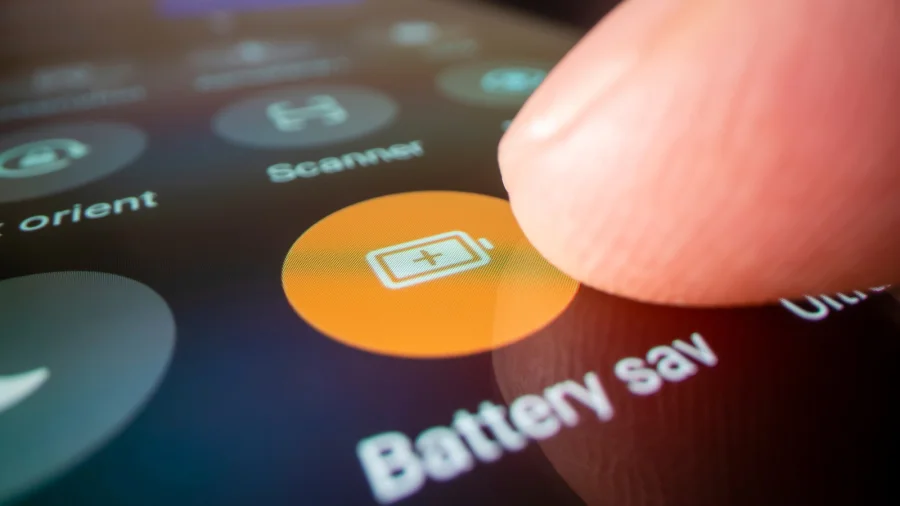
Android ships with built-in tools most people ignore. Adaptive Battery learns your usage patterns and limits power to apps you rarely use. Battery Saver and Ultra Battery Saver modes restrict background activity, reduce performance, and dim the screen when you need to stretch the last few percent.
These aren't gimmicks. They're the operating system doing exactly what you'd otherwise do manually — just automatically.
Charging Habits That Shorten Battery Lifespan
Lithium-ion batteries degrade over time, and how you charge matters. Keeping your phone plugged in at 100 percent for hours, or letting it drop to zero regularly, accelerates that decline.
Most modern Android phones offer a charge limit or optimized charging feature that pauses charging at around 80 percent overnight and finishes just before you wake up. If your phone has it, use it. Heat is the other enemy — charging under a pillow or in direct sunlight does long-term damage that no setting can undo.
What Actually Helps vs What's Just Noise
Not every tip you'll read online is worth your time. Closing all apps manually, for instance, often uses more battery than it saves, because the system has to reload them from scratch. Task killers and "battery booster" apps frequently do more harm than good.
Live wallpapers, widgets that refresh constantly, and always-on displays are genuine drains — but they're also features you may have chosen deliberately. The question isn't whether they use power. It's whether they're worth it to you.
When the Problem Isn't Settings at All
If you've made these changes and your battery still collapses by mid-afternoon, the issue may be physical. Batteries lose capacity with age and charge cycles, and after two or three years, a phone that once lasted a full day may genuinely need a replacement battery.
A sudden, dramatic drop — especially with overheating or swelling — is a different matter and warrants a service check. Software can only do so much.
Frequently Asked Questions
Does closing background apps actually save battery?
Usually not. Android is designed to manage background apps efficiently, and force-closing them means they restart from scratch, which can use more power. Restricting background activity in settings is more effective than manually killing apps.
Does dark mode really improve battery life?
On OLED and AMOLED screens, yes — black pixels are off, so power consumption drops. On LCD screens, the difference is negligible because the backlight stays on regardless.
Should I keep my phone between 20 and 80 percent?
It helps slow long-term battery degradation, but it isn't practical for everyone. Using your phone's optimized charging feature is a more realistic way to get similar benefits.
How do I find out which app is draining my battery?
Go to Settings, then Battery, and check the usage breakdown. It shows which apps consumed the most power over the past 24 hours, which is usually enough to identify the culprit.
Our Take
Battery anxiety has become a defining frustration of smartphone ownership, and the irony is that most of the solution is already sitting in your settings menu, unused. The tips here aren't dramatic, and none of them will double your battery life overnight.
But together, they can turn a phone that dies by 3 PM into one that lasts until you're home. That's not a small thing — and it costs nothing but a few minutes.