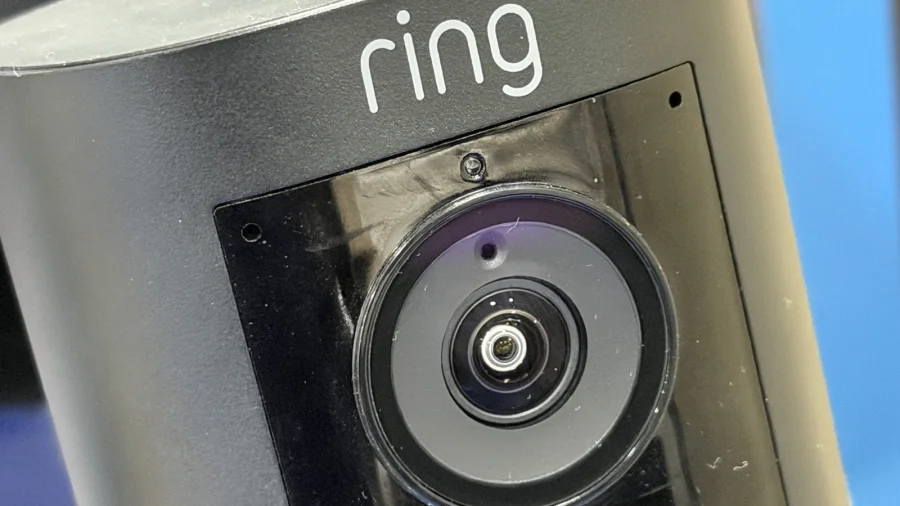
You're in the middle of a movie, and the doorbell rings. Instead of fumbling for your phone, you glance at your TV screen and see exactly who's outside. That's the convenience of connecting your Ring doorbell to your smart TV — and it's easier than you think.
Why Connect Your Ring Doorbell to Your Smart TV?
For millions of Indian households, the front door is a constant source of activity — deliveries, guests, and unexpected visitors. Having the live feed on your TV means you never have to pause your show or search for your phone. It's a simple upgrade that makes home security feel seamless.
What You Need Before You Start
To connect your Ring doorbell to your smart TV, you'll need a few things: a Ring doorbell (any model works), a compatible smart TV or streaming device, and the Alexa app on your phone. Most modern smart TVs with Alexa built-in or a Fire TV stick will work. If your TV doesn't have Alexa, you can use screen mirroring from your phone.
Step-by-Step: Connect via Alexa and Fire TV
This is the most popular method. First, open the Alexa app on your phone and enable the Ring skill. Then, link your Ring account. Once linked, say, "Alexa, show the front door" on your Fire TV or Echo Show. The live feed will appear instantly. You can also set up routines to automatically show the feed when the doorbell rings.
Alternative Method: Screen Mirroring from Your Phone
If you don't have Alexa, you can mirror your phone's screen to your smart TV. Open the Ring app on your phone, tap the live view, and then use your phone's screen mirroring feature (like Smart View on Samsung or AirPlay on iPhone). This works but requires you to keep your phone unlocked and the app open.
What About Smart TVs Without Alexa?
Many smart TVs from Samsung, LG, and Sony don't have Alexa built-in. In that case, you can buy a Fire TV stick or an Echo Show for a dedicated display. Alternatively, use screen mirroring as described above. Some TVs also support the Ring app directly, but this is less common.
Tips for a Smooth Experience
Make sure your Ring doorbell and TV are on the same Wi-Fi network. A strong connection ensures the video feed is smooth and not laggy. If you have multiple Ring cameras, you can name them (like "front door" or "back gate") so Alexa knows which one to show. Also, check for firmware updates on your Ring device and TV for best performance.
What If It Doesn't Work?
If the feed doesn't appear, double-check that the Ring skill is enabled and your accounts are linked. Restart your Fire TV or TV. If using screen mirroring, ensure both devices support the same mirroring standard (Miracast for Android, AirPlay for iPhone). Ring's support page has detailed troubleshooting for common issues.
Is This Secure?
Ring uses end-to-end encryption for video feeds. When you view the feed on your TV, it's streamed securely from Ring's servers. However, always use a strong password for your Ring account and enable two-factor authentication. Avoid sharing your Alexa or TV login details with others.
Our Take
Connecting your Ring doorbell to your smart TV is a small change that makes a big difference in daily convenience. It's not just about security — it's about not interrupting your evening. The Alexa method is the most reliable, but screen mirroring works in a pinch. For Indian homes where the doorbell rings often, this setup is worth the few minutes it takes to configure.
Frequently Asked Questions
Can I connect my Ring doorbell to any smart TV?
Most smart TVs work if they have Alexa built-in or if you use a Fire TV stick. Without Alexa, you can use screen mirroring from your phone to any smart TV that supports it.
Do I need a separate device to see Ring on my TV?
Not necessarily. If your TV has Alexa, you don't need extra hardware. Otherwise, a Fire TV stick or Echo Show is the easiest way. Screen mirroring requires no extra device but is less convenient.
Can I see my Ring doorbell on TV without Alexa?
Yes, you can use screen mirroring from your phone. Open the Ring app, start the live view, and mirror your phone's screen to your TV. This works with Android and iPhone.
Is the video feed on TV delayed?
There is a slight delay of 1-2 seconds, which is normal for streaming. The feed is real-time enough to see who's at the door. For the lowest delay, ensure a strong Wi-Fi connection.